1. Installation
Install the package via Composer:
composer require lettermint/lettermint-magento2
bin/magento setup:upgrade
bin/magento setup:di:compile
bin/magento cache:clean
2. Configuration
Make sure you have your API token ready, which you can find in your project settings.
Finding the Settings
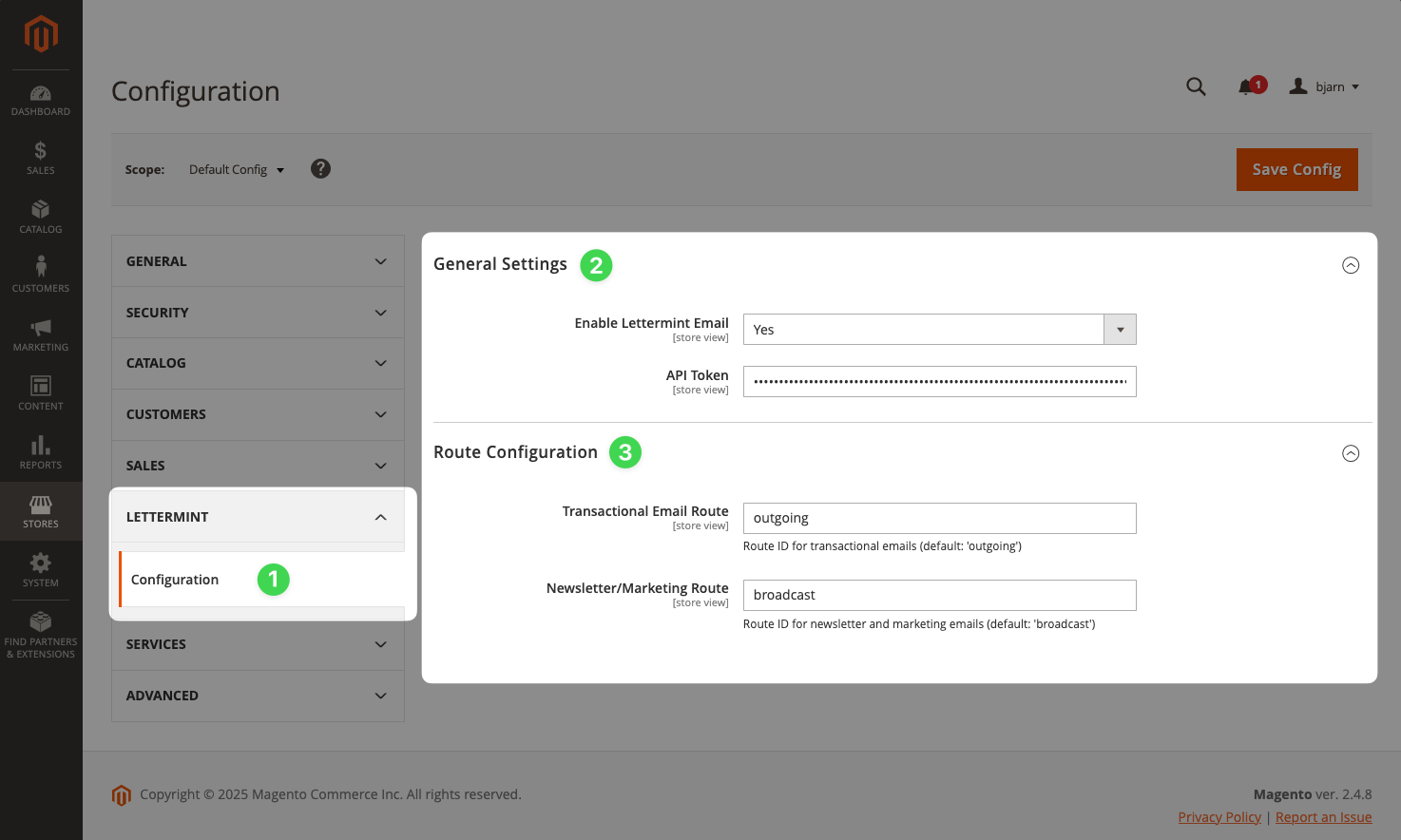
Navigate to Stores → Settings → Configuration. Then look for Lettermint in the sidebar.
General Settings
- Set Enable Lettermint Email to Yes
- Enter your project’s API token in the API Token field
- Save the configuration
Route Configuration (Optional)
Configure which routes handle different email types:
- Transactional Email Route: Used for system emails (password resets, order confirmations, invoices, track & trace updates)
- Newsletter/Marketing Route: Used for newsletter emails sent via Marketing → Newsletter Queue
The defaults work for most setups. Only configure custom routes if you need to separate email traffic for analytics or deliverability purposes.
3. Sending Emails
Automatic Transactional Emails
Once configured, all Magento transactional emails automatically route through Lettermint:
- Order confirmations
- Shipping notifications
- Password reset emails
- Customer account emails
- Invoice and credit memo emails
No code changes required - just configure and you’re ready.
Testing Your Setup
Verify the integration works by triggering a test email:
- Go to Marketing → Communications → Email Templates
- Create or edit a template
- Click Preview Template and send a test email
Or trigger a password reset from the customer login page to test transactional emails.
Programmatic Emails
Send emails programmatically using Magento’s transport builder:
<?php

namespace YourVendor\YourModule\Controller;

use Magento\Framework\App\Action\Action;
use Magento\Framework\App\Action\Context;
use Magento\Framework\Mail\Template\TransportBuilder;
use Magento\Store\Model\StoreManagerInterface;

class SendEmail extends Action
{
    public function __construct(
        Context $context,
        private TransportBuilder $transportBuilder,
        private StoreManagerInterface $storeManager
    ) {
        parent::__construct($context);
    }

    public function execute()
    {
        $storeId = $this->storeManager->getStore()->getId();

        $transport = $this->transportBuilder
            ->setTemplateIdentifier('your_email_template')
            ->setTemplateOptions([
                'area' => \Magento\Framework\App\Area::AREA_FRONTEND,
                'store' => $storeId,
            ])
            ->setTemplateVars([
                'customer_name' => 'John Doe',
                'order_id' => '100000123',
            ])
            ->setFromByScope('general')
            ->addTo('customer@example.com', 'John Doe')
            ->getTransport();

        $transport->sendMessage();
    }
}
<?php

namespace YourVendor\YourModule\Plugin;

use Magento\Framework\Mail\TransportInterface;

class TransportPlugin
{
    public function beforeSendMessage(TransportInterface $transport)
    {
        $message = $transport->getMessage();

        // Add metadata
        $message->getHeaders()->addHeaderLine(
            'X-LM-Metadata-order_id',
            '100000123'
        );

        // Add a tag
        $message->getHeaders()->addHeaderLine(
            'X-LM-Tag',
            'order-confirmation'
        );

        // Specify a route
        $message->getHeaders()->addHeaderLine(
            'X-Lettermint-Route',
            'transactional'
        );
    }
}
etc/di.xml:
<?xml version="1.0"?>
<config xmlns:xsi="http://www.w3.org/2001/XMLSchema-instance"
        xsi:noNamespaceSchemaLocation="urn:magento:framework:ObjectManager/etc/config.xsd">
    <type name="Magento\Framework\Mail\TransportInterface">
        <plugin name="lettermint_transport_headers"
                type="YourVendor\YourModule\Plugin\TransportPlugin"/>
    </type>
</config>
Metadata is included in webhook payloads but not added to the actual email headers. Use it for tracking and analytics purposes.
4. Troubleshooting
Emails Not Sending
- Verify Enable Lettermint Email is set to Yes
- Check your API token is correct
- Review logs in
var/log/system.log
- Ensure the module is enabled:
bin/magento module:status Lettermint_Email
Clear Cache After Changes
After configuration changes:
bin/magento cache:clean config
Next Steps
GitHub Repository
Find the complete source code, report issues, or contribute on GitHub.